

Consumers believe real voices, not marketing copy – and the numbers back it up.
79% of consumers trust user-generated content (UGC) as much as personal recommendations.
Knowing how to display user generated content on website pages is essential if you want to build trust, boost engagement, and turn social proof into conversions. This guide shows you where and how to do it.
How to display user generated content on your website?
Have amazing UGC? Don’t let it sit on your product pages, transform it into scroll-stopping ads that cut through Facebook fatigue and drive real conversions.
UGC social walls
UGC social walls are one of the most effective ways to display user generated content on a website because they transform scattered social posts into a unified, on-site experience.
Instead of leaving valuable customer photos, reviews, and mentions buried across social platforms, a social wall pulls them together and displays them in a live, visual feed directly on your pages.
UGC social walls can work especially well if you run a campaign and contest encouraging users to produce content. You can align a hashtag campaign with your brand values and products, offer appealing prizes, showcase entries publicly, and actively engage with participants.
Featuring entries on your website gives contributors recognition and encourages more people to join in. Be sure to credit contributors by tagging or acknowledging their usernames.
It’s also important that your wall is mobile-friendly so visitors can easily view and submit content from any device. Juicer.io makes all that as simple as possible.
How to display a UGC social wall on your website with Juicer.io
- Create an account (or free) and log in to Juicerr.io.
- Create a new feed and choose your sources (for example: Instagram, LinkedIn, X, Facebook, TikTok, or a hashtag feed).
- Connect your social accounts or add the hashtag you want to track.
- Let Juicer automatically pull in posts. Review and moderate the feed so only on-brand content appears.
- Customize the wall layout, colors, and styling to match your website design.
- Copy the embed code provided for your feed.
- Paste the embed code into your website’s HTML where you want the social wall to appear.
- Publish the page – your UGC social wall will now update automatically as new posts are created.
With a UGC social wall in place, your website becomes a living stream of customer voices instead of a static brand-only space.
Google reviews
Google Reviews are one of the highest-impact forms of user generated content you can display on a website. They combine written feedback with star ratings, giving visitors both detailed opinions and quick visual signals of quality.
In fact, 91.1% of consumers read at least one review before making a purchase, making online reviews a critical trust layer in your buying journey.
Reviews provide a low-friction way for customers to contribute feedback (often requiring just a few clicks). To keep review content flowing, encourage customers to leave feedback through gentle post-purchase reminder emails and occasional social media incentives. For example, you can run a campaign like: “Leave a review for your chance to win a $100 shopping voucher.”
Just as important as collecting reviews is responding to them. Engage with both positive and negative feedback professionally – thoughtful responses show transparency and strong customer care.
How to display Google Reviews on your website with Juicer.io
- Log in to your Juicer.io dashboard.
- Click the “+ Add source” button to add a new content source.
- Select “Google Reviews” from the list of available sources.
- Add your business listing by either:
- Pasting your Google Maps business URL, or
- Searching by business name and address.
- Click “Add source.”
- Juicer.io will automatically pull in your Google Reviews, including star ratings and written feedback.
- Moderate and approve reviews you want displayed in your feed.
- Copy your Juicer.io embed code and paste it into your website where you want reviews and ratings to appear.
Once live, this setup will let you showcase trusted third-party reviews and star ratings directly on your site, turning passive feedback into visible, conversion-focused social proof.
Customer testimonials
Customer testimonials are a classic but highly effective form of user-generated content. They include written endorsements and video formats like demos, unboxings, and experience stories.
Placed strategically, testimonials build credibility, reduce uncertainty, and help buyers imagine using your product in real life.
Brands can encourage authentic testimonials by sending products or small gifts and adding subtle branded elements to make shared content more recognizable. Ask customers to include photos, specific use cases, and detailed feedback.
These testimonials and user generated posts not only support marketing but also reveal product insights and reduce content production and marketing effort costs.
Video testimonials are especially powerful: seeing a real person explain how they use a product builds trust faster than text and answers practical questions at the same time.
Recommended tools (based on testimonial format):
- Video case studies published on YouTube → use Juicer.io to aggregate and embed videos
- Written testimonials → use a CMS platform like WordPress Gutenberg testimonials blocks
How to display video testimonials from YouTube using Juicer.io
- Sign up for a Juicer.io account (free YouTube aggregator option available).
- After logging in, select the YouTube source icon.
- Click Create Source and connect your YouTube channel.
- Juicer.io will automatically curate your YouTube videos into a feed.
- Open your feed editor to review and moderate which videos appear.
- In the sidebar, click Embed.
- Copy the embed code provided.
- Paste the code into any page where you want your video testimonial feed to appear.
How to display written testimonials using WordPress
- In your WordPress dashboard, create a new page or post for your testimonials.
- Add a structured layout using Gutenberg blocks (heading, columns, quote, image, and gallery blocks).
- Insert a Quote block for customer statements and highlight key results.
- Add Image blocks for screenshots and the customer’s company logo.
- Use reusable block patterns or testimonial templates if available in your theme.
- Create a consistent format so all case studies follow the same structure.
- Publish and group them under a Testimonials or Success Stories section.
Continuously add new written and video UGC without redesigning pages, keeping your social proof fresh, visible, and scalable.
Case studies
Case studies are a detailed form of user-generated content that show real results, helping prospects see your product in action rather than just reading claims. The strongest case studies combine authentic customer voice, measurable outcomes, and practical context.
They’re also valuable for SEO, as customer quotes and real-world scenarios naturally introduce fresh, keyword-rich language. Including screenshots, customer statements, and other social proof boosts credibility, search visibility, and community building by positioning customers as partners in success.
To source strong case studies, involve customer support and success teams. They can identify satisfied, brand-aligned customers who are likely to participate. Invite them to collaborate and feature their company logo to increase authority and recognition.
A modern CMS like Webflow CMS makes it easy to collect, manage, and display written and video testimonials in a structured, repeatable layout. Dynamically display entries across multiple pages without rebuilding sections each time.
How to display case studies using Webflow CMS
- In your Webflow project, open the CMS panel and create a new Collection called “Case Studies.”
- Add custom fields such as:
- Customer name
- Company (optional)
- Star rating (optional)
- Image or avatar
- Video URL (for video studies)
- Add articles manually.
- Open the page where you want case studies to appear.
- Insert a Collection List element and connect it to your Case Studies collection.
- Design the case study layout (quote text, name, rating, thumbnail, video embed).
- Bind each design element to the matching CMS field.
- Set filters or sorting if you want to show only featured studies on certain pages.
- Publish your site – they will now display dynamically and can be updated anytime through the CMS.
Use case studies to create a layered UGC proof system that supports SEO, builds trust, and demonstrates real-world impact.
Community content
Community content is one of the most authentic forms of user-generated content because it captures practical, experience-based insights that don’t appear on official channels.
It comes from spaces where users already gather (communities, forums, social channels) and includes real discussions, tips, troubleshooting, creative uses, and advanced workflows.
These firsthand stories and peer-to-peer solutions build trust, reduce friction for new buyers, and support long-term engagement by turning scattered conversations into structured social proof and practical guidance.
A strong community content section can include:
- User-submitted tips and workarounds
- Customer solution threads and FAQs
- Advanced workflows and use cases
When choosing sources, focus on the platforms where your target audience already spends time, rather than trying to be everywhere at once.
Juicer.io lets you aggregate and embed community content feeds from platforms like LinkedIn, Slack, Reddit, and more directly onto your website. This allows you to showcase real conversations and community knowledge in a live, automatically updating feed.
How to display community content on your website with Juicer (LinkedIn or Slack example)
- Log in to your Juicer dashboard.
- Create a new feed or open an existing one.
- Click “+ Add source.”
- Choose your community platform source, such as LinkedIn or Slack (or Reddit if your community is there).
- Connect your account or workspace and select the specific page, group, or channel you want to aggregate.
- Approve access so Juicer can pull in posts and messages from that source.
- Review and moderate incoming community content so only relevant, on-brand posts appear.
- Customize the feed layout to match your website design.
- Click “Embed in Your Site.”
- Copy the embed code and paste it into the page where you want your community content section to appear.
- Publish your page — your community feed will update automatically as new posts and discussions happen.
Embedding community content closes the loop between your users, social media channels, and your website, turning everyday conversations and problem-solving into living proof of product value.
Where to add user-generated content on website for maximum impact?
Placing user-generated content strategically across your website ensures it builds trust, drives engagement, and boosts conversions at every stage of the customer journey.
UGC on homepage
Your homepage is your brand’s first impression, so UGC here should deliver instant credibility and social proof. Well-placed user generated content quickly shows visitors that real people use and enjoy your products.
Focus on highly visual, fast-to-digest content. Keep everything curated and moderated.
If you collect submissions through forms or comments, protect this high-visibility area with a clear content policy covering links, language, and spam to keep quality high.
Best UGC for homepage placement:
- Short customer video testimonials
- 5-star review snippets and standout quotes
- User photos in a rotating gallery
- Embedded social or hashtag feeds
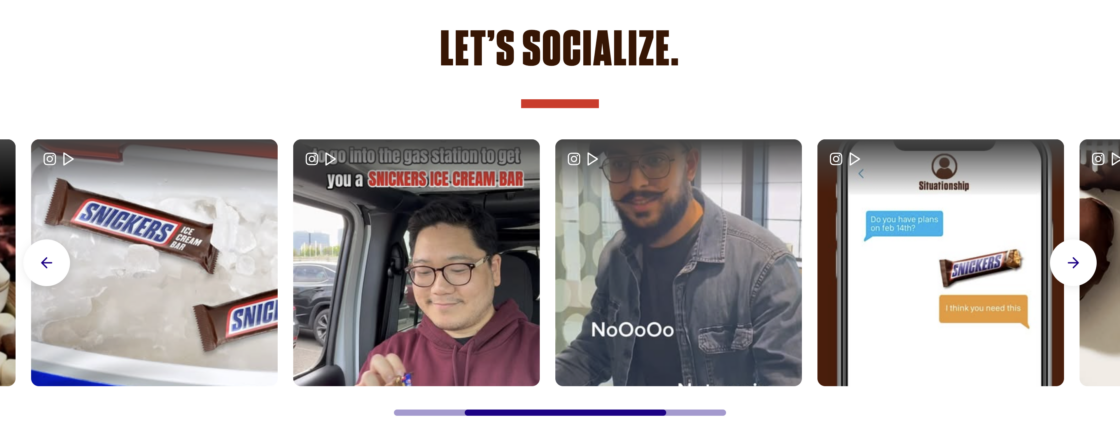
The Snickers website (a Juicer.io user!) features authentic customer moments, delivering quick, visual social proof without overwhelming the page.
UGC on product pages
Product pages are where UGC has the strongest influence on conversions. This is the decision point… placing user generated content close to product details helps shoppers move forward faster.
Scatter clear CTAs across your pages, emails, and thank-you pages to encourage more submissions of UGC (for example: “Share a photo with your new bag to get 15% off your next order.”). Challenges, giveaways, and branded hashtags also help keep content flowing.
The most effective product-page UGC reduces doubt and shows real-life usage: place it near to specs and pricing, checkout elements, and landing sections to build trust quickly.
Best UGC for product page placement:
- Photo galleries of customers using the product
- Video and written reviews explaining real outcomes
- Unboxing and demo videos
- Creator and influencer clips with shoppable UGC widgets
The Bloom product page displays creator, brand advocates, and customer videos (recipes, GRWM clips, and unboxings) paired with shoppable UGC widgets for the featured products. This lets shoppers watch real usage and add items to cart directly from the content.

UGC on sign up or pricing pages
Your sign-up and pricing pages are high-intent moments; visitors are close to converting but may need one final reassurance. Strategic placement matters.
Most buyers read multiple reviews before purchasing, so even small proof can tip the decision. Keep UGC concise and credibility-focused: use short testimonials, mini case-study quotes, or micro-reviews near forms or pricing tables.
Pairing lightweight activity signals with quotes (eg., “Just purchased by 3 people in the last hour” plus a one-line review) reinforces momentum.
Best UGC for sign-up or pricing placement:
- Short testimonial quotes with name, role, and company
- Star ratings or short review excerpts
- Micro social-proof notifications paired with quotes, recent purchases
Dock places a detailed customer testimonial directly beside the sign-up form. The quote includes the reviewer’s details and photo, adding strong credibility right at the moment of account creation.

FAQs about incorporating user generated content on website
User-generated content (UGC) is any content created by customers or users instead of the brand itself. It typically appears as reviews, photos, videos, testimonials, social media posts, comments, unboxings, demos, and case studies. UGC acts as authentic, scalable social proof (similar to word-of-mouth at digital scale) and is trusted because it’s perceived as genuine and unbiased. It helps answer buyer questions, overcome objections, and shorten the sales cycle while making customers feel recognized and part of the brand community.
Displaying user-generated content on your website builds trust and credibility by sharing authentic, unfiltered perspectives on your products or services. It’s also cost-effective, reducing the need for brand-created content while providing fresh, keyword-rich material that can improve SEO. UGC fosters community engagement, encourages repeat interaction, and delivers valuable feedback and insights to help improve products and marketing strategies.
Yes – in many cases, UGC can outperform traditional ads. Unlike branded content, user-generated content is perceived as authentic and unbiased, which makes it more trustworthy and relatable. While ads tell people why they should buy, UGC shows real customers using, enjoying, and endorsing your products, providing real world context that resonates with potential buyers. It also engages communities, encourages interaction, increases brand awareness, and can influence purchasing decisions more effectively by answering questions and overcoming objections naturally. In short, UGC leverages peer validation, which often cuts through ad fatigue and drives higher trust and conversion.